
Every content creator knows the sinking feeling of a bottlenecked workflow. You have spent hours meticulously cutting together a 4K video, layering intricate motion graphics, or balancing a massive 100-track audio session. But when you press play to preview your masterpiece, the timeline stutters. Audio drops out. The playback monitor turns into a pixelated, frozen mess. Finally, when it is time to export, you are met with a progress bar that estimates hours of rendering time, effectively paralyzing your entire workstation.
If this scenario sounds familiar, the culprit is almost certainly your computer’s Central Processing Unit, or CPU.
The processor is the absolute brain of your computer. While graphics cards (GPUs) get much of the glamorous marketing—especially in the gaming world—content creation is a fundamentally different beast. Whether you are editing high-bitrate video, rendering 3D environments, designing massive billboards, producing complex music tracks, or streaming to thousands of viewers, your CPU dictates how fast, smooth, and stable your creative process will be.
However, shopping for a processor can feel like trying to decipher an ancient language. Between clock speeds, core counts, thread directors, P-cores, E-cores, cache sizes, and the endless debate between Intel and AMD, it is easy to become overwhelmed. Buying the most expensive chip on the market isn’t always the right answer, as different creative applications utilize processor power in vastly different ways.
In this comprehensive guide, we will break down the complex terminology of modern processors, analyze how different creative software utilizes hardware, and provide you with the exact knowledge you need to select the perfect CPU for your specific content creation workflow.
Understanding the Anatomy of a CPU
Before we can match a processor to your creative software, we must understand how a CPU actually works. You don’t need a degree in computer engineering, but understanding a few key concepts will prevent you from wasting money on the wrong specifications.
Think of your CPU as a massive factory. The efficiency of this factory is determined by several different factors working in harmony.
Cores and Threads
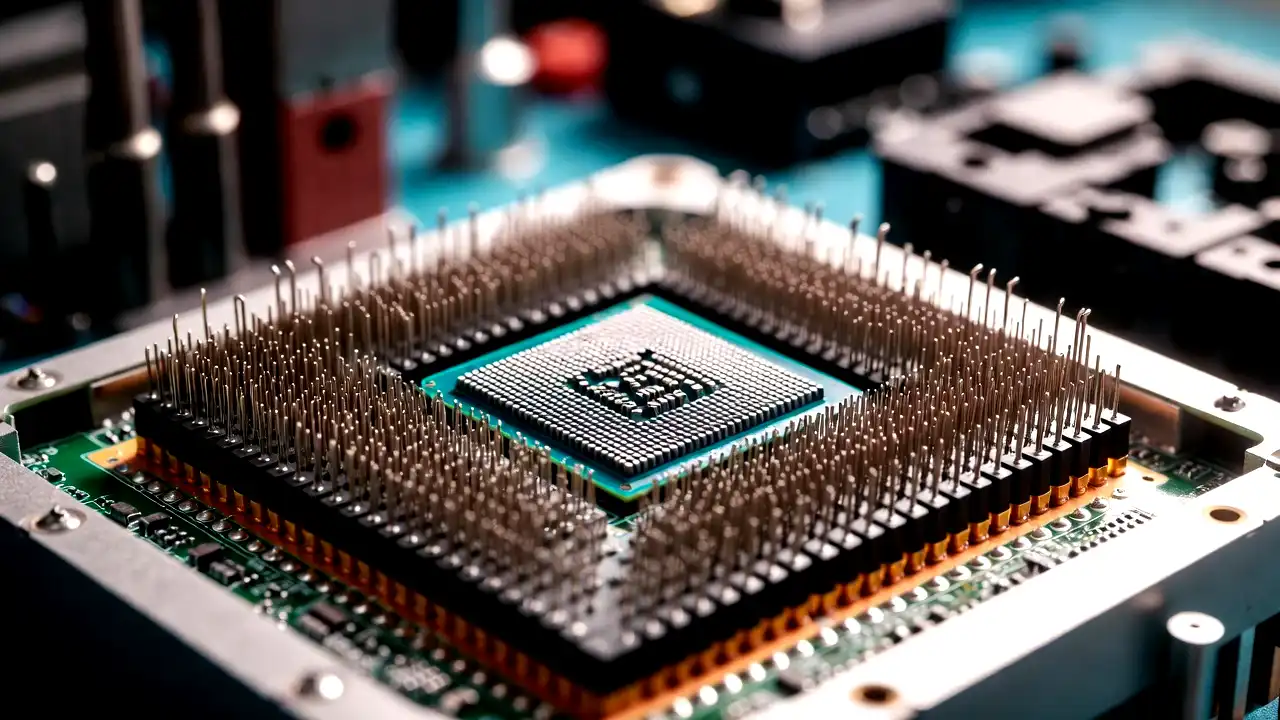
A CPU “core” is an individual processing unit within the main processor. In our factory analogy, cores are the actual workers on the assembly line. Ten years ago, most computers had one or two cores. Today, consumer processors can have anywhere from 6 to 24 cores (and workstations can have up to 96).
If you are rendering a 3D animation, the workload can be divided. One core can calculate the lighting for the top half of the frame, while another core calculates the bottom half. More cores mean more workers handling different parts of a task simultaneously. This is called “multi-core” performance.
“Threads” represent the number of tasks a core can handle at once. Thanks to technologies like Intel’s Hyper-Threading and AMD’s Simultaneous Multithreading (SMT), a single physical core can act like two virtual cores. It is the equivalent of giving your factory worker two hands instead of one, allowing them to juggle two instruction streams simultaneously. If you see a CPU listed as “12 Cores / 24 Threads,” it is a highly capable multitasking powerhouse.
Clock Speed (Base and Boost)
If cores are the number of workers, the clock speed (measured in Gigahertz, or GHz) is how fast those workers move.
- Base Clock: This is the guaranteed minimum speed the processor will run at under a heavy workload.
- Boost Clock: This is the maximum speed a single core (or a few cores) can reach for short bursts when a specific task requires a massive spike in power, provided the CPU is cool enough.
Some creative tasks cannot be divided among multiple workers. For example, applying a complex brush stroke in Photoshop must be calculated in a linear sequence; you cannot calculate the end of the stroke before the beginning. Tasks like this rely heavily on “single-core” performance, meaning they benefit far more from a high clock speed (e.g., 5.5 GHz) than from having dozens of cores.
Cache Memory (L1, L2, L3)
Cache is ultra-fast memory built directly onto the CPU chip itself. If the system RAM (Random Access Memory) is a filing cabinet across the room, the CPU Cache is the worker’s physical desk.
Cache stores the instructions and data that the CPU needs to access repeatedly and instantaneously. L1 cache is the fastest but smallest, while L3 is larger and slightly slower. For complex content creation—especially compiling code, complex audio routing, or active timeline scrubbing in video editing—a larger L3 cache prevents the CPU from having to pause and wait for data to arrive from the system RAM.
IPC (Instructions Per Clock) and Architecture
You cannot compare CPUs based purely on clock speed or core count if they are from different generations or brands. A modern CPU running at 4.0 GHz will absolutely obliterate a ten-year-old CPU running at 4.0 GHz.
This is because of IPC (Instructions Per Clock) and architectural improvements. IPC represents how much actual work a processor can get done in a single clock cycle. Every year, Intel and AMD release new architectures (like Raptor Lake or Zen 5) that improve IPC, making the “workers” smarter and more efficient, even if they aren’t moving any faster.
Matching the CPU to Your Creative Workflow
The biggest mistake content creators make is assuming that a CPU optimized for one task is automatically great for another. A top-tier processor for video editing might actually be outperformed by a cheaper processor when it comes to music production or graphic design. You must align your hardware purchase with your specific software demands.
Video Editing (Premiere Pro, DaVinci Resolve, Final Cut Pro)
Video editing is a highly complex workload because it is divided into two distinct phases: active playback/scrubbing, and final rendering/exporting.
- Active Playback: When you are scrubbing through a timeline, adding crossfades, and tweaking color grades, your CPU is working desperately to decode compressed video files (like H.264 or HEVC/H.265) on the fly. This relies heavily on clock speed and specialized hardware decoders.
- Final Rendering: When you export the final video, the software shifts to utilizing as many cores as possible to crunch the math for the entire timeline.
The Intel Advantage (QuickSync): For video editors, Intel processors (specifically those with integrated graphics, meaning they do not have an ‘F’ in their name) offer a massive secret weapon called Intel QuickSync Video. QuickSync is a dedicated piece of silicon on the chip designed exclusively to encode and decode H.264 and HEVC video files. If you shoot video on a mirrorless camera, a drone, or a smartphone, those files are highly compressed. An Intel CPU with QuickSync will offer incredibly smooth timeline playback in Premiere Pro and DaVinci Resolve, often outperforming much more expensive processors that lack this specific hardware decoder.
Recommendation for Video Editors: Look for high core counts (minimum 8 cores) and high boost clocks. Intel Core i7 and Core i9 processors (non-F models) are generally the kings of video editing workflows. AMD Ryzen 9 processors are incredibly fast at exporting, but without an equivalent to QuickSync, timeline scrubbing of highly compressed codecs might require the use of proxy files.
3D Rendering and Animation (Blender, Cinema 4D, Maya)
If you are a 3D artist, your needs are drastically different. 3D workloads are generally split between active modeling/animation and final rendering.
- Active Modeling: When you are manipulating a mesh, moving a rigged character, or navigating the viewport, the software is relying almost entirely on single-core performance. A CPU with an incredibly fast boost clock is vital to prevent viewport lag.
- CPU Rendering: If you use CPU-based render engines like Arnold, Corona, or V-Ray (or CPU rendering in Blender’s Cycles), multi-core performance is the absolute holy grail. Rendering an image is a perfectly parallel task. A processor with 24 cores will render an image almost exactly twice as fast as a processor with 12 cores, assuming similar architectures.
(Note: Many 3D artists have shifted to GPU rendering engines like Octane or Redshift. If you rely on GPU rendering, you do not need a massive 24-core CPU. Instead, invest your budget into one or more high-end graphics cards, and buy a mid-range, high-clock-speed CPU to handle the viewport and feed data to the GPU.)
Recommendation for 3D Artists: If you render on the CPU, you need massive multi-core power. AMD’s Ryzen 9 series (like the 7950X) or Intel’s Core i9 series are top choices. If you are doing Hollywood-level VFX or architectural visualization, this is the one category where stepping up to High-End Desktop (HEDT) processors like AMD’s Threadripper—which offer 64 to 96 cores—is a worthy, albeit massively expensive, investment.
Graphic Design and Photography (Photoshop, Lightroom, Illustrator)
Adobe’s graphic design suite is notoriously reliant on legacy code. Despite updates over the years, programs like Photoshop and Illustrator are generally incapable of utilizing massive multi-core processors.
Applying a complex filter, using the healing brush, or calculating a heavy vector illustration are predominantly single-threaded or lightly threaded tasks (utilizing 1 to 4 cores). Furthermore, Lightroom’s active module for adjusting sliders relies heavily on clock speed and cache.
Buying a 16-core or 24-core CPU for a pure Photoshop workstation is a waste of money. The software will simply ignore the extra cores.
Recommendation for Graphic Designers: Prioritize IPC and incredibly high boost clocks over core count. A 6-core or 8-core processor with a boost clock of 5.0 GHz or higher is ideal. An Intel Core i5 or Core i7, or an AMD Ryzen 5 or Ryzen 7, will provide maximum performance. Spend the money you saved on the CPU on more RAM (32GB to 64GB) and ultra-fast NVMe storage, which will have a much bigger impact on loading massive RAW files.
Music Production and Audio Engineering (Ableton Live, FL Studio, Pro Tools)
Audio production is perhaps the most misunderstood computing workload. It requires a delicate balance of fast single-core speed, a healthy number of multi-cores, and incredibly low DPC (Deferred Procedure Call) latency.
When you route audio through a mixer channel, add an EQ, a compressor, and a reverb plugin, that specific audio chain must be processed sequentially. It relies on the single-core speed of one specific core. However, if your track has 50 different instruments, each with its own effects chain, the Digital Audio Workstation (DAW) will farm those 50 chains out to all available cores.
Audio does not buffer the same way video does; if the CPU cannot calculate the plugin math within a fraction of a millisecond, the audio will pop, click, or drop out entirely.
Recommendation for Audio Producers: You need a high clock speed to handle heavy, complex plugin chains on master buses, and a high core count to handle massive multi-track projects. Both Intel Core i7/i9 and AMD Ryzen 7/9 processors excel here. However, pay close attention to the motherboard you pair it with, as poorly optimized motherboard drivers can cause DPC latency spikes that ruin audio playback regardless of the CPU’s power.
Live Streaming and Broadcasting (OBS Studio, Twitch, YouTube)
A dedicated streamer is essentially running a live television production studio from a single computer. You are playing a game (or running creative software), running a webcam, managing audio levels, rendering overlays, and encoding all of that data into a compressed video stream to send to the internet in real-time.
Historically, streaming required a massive, high-core-count CPU to handle x264 software encoding while playing a game simultaneously. Today, most streamers use GPU-based encoding (like NVIDIA’s NVENC encoder), which takes the heavy lifting off the processor.
However, running OBS Studio, alerts, chat clients, virtual avatars (VTubing), and routing audio software (like Voicemeeter) still adds significant background overhead to your system.
Recommendation for Streamers: A strong mid-range to high-end CPU is required to prevent the background streaming tasks from dropping the framerate of your primary creative application or game. Aim for an 8-core to 12-core processor. An Intel Core i7 or an AMD Ryzen 7 strikes the perfect balance for a single-PC streaming setup.
The Great Divide: Intel vs. AMD
For over a decade, Intel was the undisputed king of processors. In 2017, AMD launched their Ryzen architecture, completely revolutionizing the market by offering massive core counts at affordable prices. Today, the competition is fierce, and both companies offer incredible options for creators. Understanding their design philosophies will help you choose.
Intel’s Hybrid Architecture (big.LITTLE)
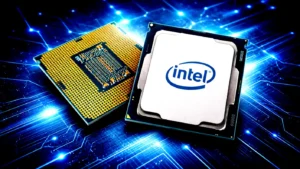
Starting with their 12th Generation (Alder Lake) and continuing through Raptor Lake and beyond, Intel fundamentally redesigned how desktop CPUs work. Instead of all cores being identical, Intel CPUs now feature two distinct types of cores:
- P-Cores (Performance Cores): Massive, power-hungry, lightning-fast cores designed to handle the heavy lifting (like rendering a frame or applying a Photoshop filter).
- E-Cores (Efficient Cores): Smaller, slower, but highly efficient cores that handle background tasks (like downloading a file, running Discord, or managing Windows updates).
A chip like the Intel Core i9-14900K features 8 P-Cores and 16 E-Cores (24 cores total). Windows uses a hardware “Thread Director” to assign tasks to the appropriate cores in real-time. This architecture is incredible for content creation because it allows your creative software to monopolize the fast P-Cores while the E-Cores keep your background applications running smoothly without interrupting your render.
AMD’s Ryzen Architecture (Zen and Chiplets)
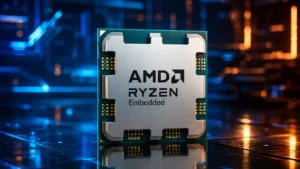
AMD takes a different approach. Their desktop Ryzen processors generally utilize “full-size” identical cores. A 16-core Ryzen 9 7950X has 16 massive, high-performance cores. AMD achieves this through “chiplet” design—stitching together smaller clusters of cores under the main heat spreader.
AMD processors are renowned for their incredible power efficiency (drawing less electricity and often generating less heat under multi-core loads compared to top-tier Intel chips) and their raw multi-core rendering dominance.
A Note on AMD “X3D” Processors: You will see AMD processors with “X3D” in the name (like the Ryzen 7 7800X3D). These feature “3D V-Cache,” a massive stack of extra cache memory. While these are the absolute best processors in the world for gaming, the lower clock speeds required to keep the stacked memory cool actually make them slower for most content creation tasks like video editing and rendering compared to their non-X3D counterparts. If your primary goal is content creation, stick to the standard ‘X’ or non-X AMD chips.
Decoding CPU Naming Conventions
Walking into a computer store and seeing a label that reads “Intel Core i7-14700K” or “AMD Ryzen 9 7900X” can be baffling. Here is the secret decoder ring for both brands.
Intel Naming Explained
- Brand & Tier: Core i3 (Entry), i5 (Mid-range), i7 (High-end), i9 (Enthusiast).
- Generation: The numbers following the tier. For example, in the i7-14700K, the “14” means it is a 14th-generation processor.
- SKU / Performance Level: The “700” dictates where it sits in the hierarchy (higher is generally better).
- The Suffix Letters (Crucial for Creators):
- K: Unlocked. This means you can manually overclock the processor, and it generally features higher out-of-the-box clock speeds.
- F: NO Integrated Graphics. Video editors beware! If you buy an “F” processor (like the i7-14700KF), you completely lose Intel QuickSync, severely impacting timeline playback performance.
- No Letter: The standard, locked version. Great for budget builds, includes QuickSync.
(Note: Intel is currently transitioning to a new naming scheme called “Core Ultra” for some of their newest architectures, but the tiering of 5, 7, and 9 remains similar).
AMD Naming Explained
- Brand & Tier: Ryzen 5 (Mid-range), Ryzen 7 (High-end), Ryzen 9 (Enthusiast).
- Generation: The first number. In the Ryzen 9 7900X, the “7” means it is part of the 7000 series.
- SKU / Performance Level: The “900” indicates its position in the stack.
- The Suffix Letters:
- X: High performance, higher clock speeds, automatically boosts higher out of the box.
- X3D: Stacked 3D cache. Incredible for gaming, sub-optimal for heavy content creation.
- G: Includes integrated graphics (APU). Usually has less cache; generally avoid for high-end dedicated creation rigs.
Budget vs. Performance: Tiered Recommendations
With all the technical data out of the way, how do you decide how much to spend? Here is a breakdown of processor tiers tailored for content creators.
The Entry-Level Creator (Budget: $150 – $250)
If you are just starting out, editing 1080p YouTube videos, learning graphic design, or producing beats in your bedroom, you do not need a $600 processor. Modern entry-level CPUs are more powerful than the flagship workstation chips from seven years ago.
- Intel Pick: Intel Core i5-13400 or i5-14400. With 10 cores (6 P-Cores, 4 E-cores) and QuickSync included, this is an absolute monster for budget Premiere Pro editing and general Adobe work.
- AMD Pick: AMD Ryzen 5 7600. An excellent 6-core processor with a great upgrade path on the newer AM5 motherboard platform.
The Mid-Range Professional (Budget: $300 – $450)
This is the “sweet spot.” For freelance videographers, dedicated streamers, and professional graphic designers, this tier offers 90% of the performance of flagship chips for 60% of the price.
- Intel Pick: Intel Core i7-13700K or i7-14700K. The 14700K boasts a massive 20 cores (8P + 12E). It is arguably the best value-to-performance processor on the market for an Adobe-centric workflow, effortlessly handling 4K video and complex After Effects compositions.
- AMD Pick: AMD Ryzen 9 7900X. Featuring 12 full-fat performance cores, this is a phenomenal chip for intermediate 3D artists and multi-track audio engineers.
The High-End Studio Workstation (Budget: $500 – $700+)
If time is literally money, and waiting an extra ten minutes for a render costs you billable hours, you need a flagship consumer CPU. These are for RED/ARRI RAW video editing, heavy 3D rendering, and massive Unreal Engine development.
- Intel Pick: Intel Core i9-14900K. With 24 cores and boost clocks hitting up to 6.0 GHz, this is a thermonuclear powerhouse. It crushes everything from Lightroom to DaVinci Resolve.
- AMD Pick: AMD Ryzen 9 7950X. Packing 16 immense cores and 32 threads, this is the undisputed king of CPU-based 3D rendering (like V-Ray or Blender Cycles) in the consumer space.
Beyond the Processor: Crucial Ecosystem Considerations
Buying the best CPU for content creation is only half the battle. A processor does not operate in a vacuum. If you pair a $600 Core i9 with cheap, inadequate surrounding components, you will cripple its performance.
Thermal Design Power (TDP) and Cooling
Content creation pushes CPUs to 100% utilization for sustained periods—sometimes hours during a massive video export. High-end processors generate a terrifying amount of heat. If a CPU hits its thermal limit (usually around 95°C to 100°C), it will “thermal throttle.” This means it will intentionally slow down its clock speeds to prevent melting.
A thermal-throttling Core i9 is slower than a well-cooled Core i5. If you buy a high-end i7, i9, Ryzen 7, or Ryzen 9, you must invest in a premium cooling solution. Do not use the stock cooler that comes in the box. Invest in a massive dual-tower air cooler (like the Noctua NH-D15) or a 280mm/360mm All-In-One (AIO) liquid cooler.
Motherboard Power Delivery (VRMs)
The motherboard delivers electricity to the CPU via components called VRMs (Voltage Regulator Modules). If you put a 24-core i9 processor into a cheap $80 motherboard, the VRMs will overheat trying to supply the necessary 250+ watts of power, and the motherboard will throttle the CPU. Ensure you pair high-end processors with mid-to-high-tier motherboards (like Z790 for Intel or X670/B650E for AMD) that feature robust heatsinks over their VRMs.
RAM (Memory) Capacity and Speed
Content creation is incredibly RAM hungry. The fastest CPU in the world will stall if it runs out of system memory.
- 16GB: Bare minimum for 1080p editing and basic graphic design.
- 32GB: The new standard. Ideal for 4K video editing, heavy audio production, and 3D modeling.
- 64GB+: Required for heavy After Effects motion graphics, 6K/8K video, and massive 3D architectural renders.
Additionally, modern CPUs perform best with modern DDR5 memory. While Intel 13th/14th Gen processors technically support older DDR4, pairing them with high-speed DDR5 (6000MHz or higher) will yield noticeable improvements in render times and timeline responsiveness.
Conclusion
Selecting the right processor for content creation is the most consequential decision you will make when building or upgrading your workstation. By looking past the flashy marketing and identifying exactly how your primary software functions—whether it craves the massive multi-core architecture needed for 3D rendering, the blistering single-core clock speeds required for digital illustration, or the specialized hardware decoding crucial for smooth video editing—you can make an informed, confident purchase.
Remember, there is no single “best” processor in the world; there is only the best processor for your specific workflow. Balance your budget, invest in adequate cooling and RAM, and watch as your creative process transforms from a stuttering struggle into a seamless, limitless flow state.