
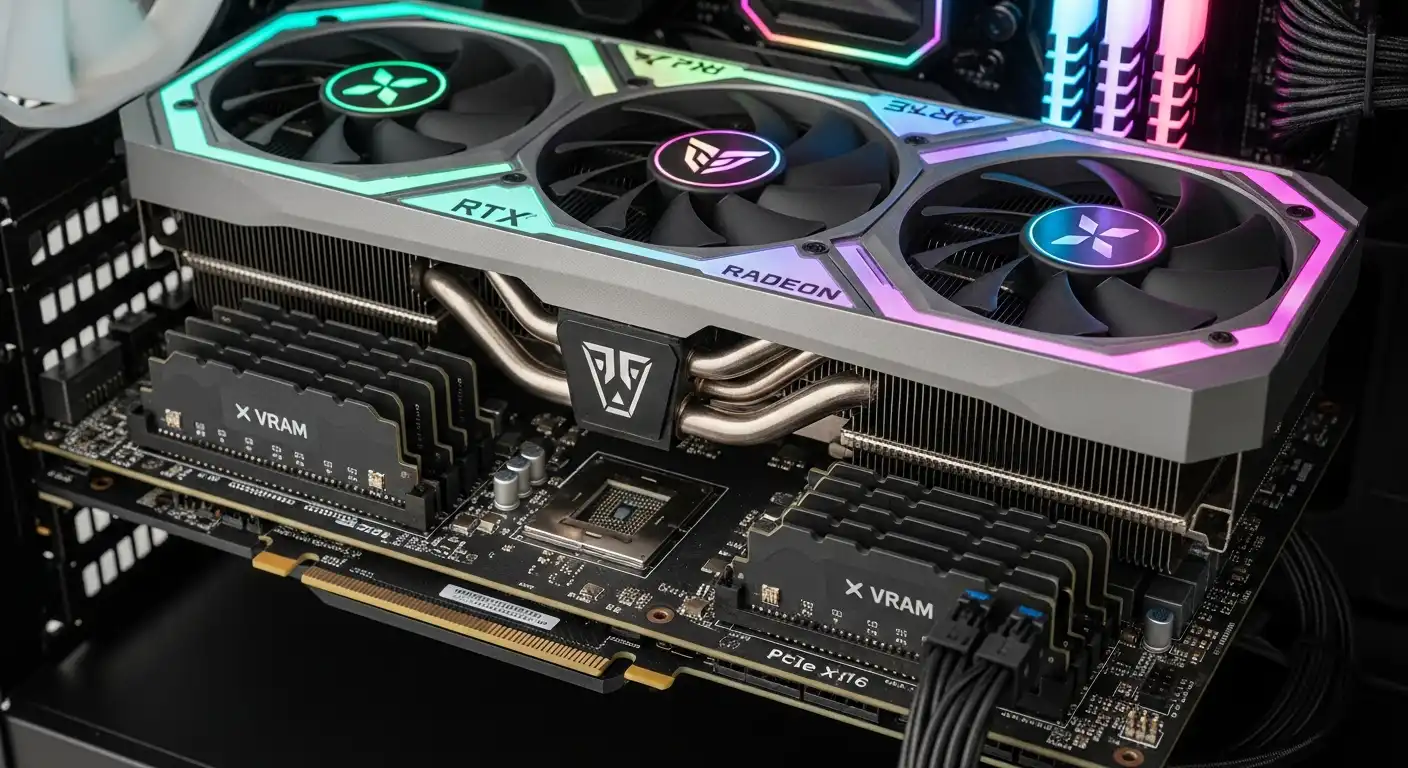
The difference between a frustrating, stuttering mess and a buttery-smooth gaming experience often lies not in the price tag of your graphics card, but in how well it is tuned. Whether you are rocking the latest RTX 50-series flagship or squeezing the last drops of life out of a trusty GTX 1060, optimization is the key to unlocking your rig’s full potential.
Many gamers mistakenly believe that simply plugging in a GPU and installing drivers is the end of the road. In reality, modern graphics cards are complex beasts that rely on a synergy of software, thermal management, and system settings to perform at their peak. Poor optimization can lead to input lag, screen tearing, thermal throttling, and significantly lower frame rates (FPS) than your hardware is capable of producing.
This comprehensive guide will walk you through every layer of GPU optimization. We will cover basic maintenance, deep Windows system tweaks, control panel secrets for NVIDIA and AMD, the magic of upscaling technologies, and advanced hardware tuning like undervolting.
The Foundation: Clean Driver Installation and Management
Before diving into complex registry edits or overclocking tools, you must ensure the foundation of your graphical performance—the driver—is rock solid.
Why Standard Updates Aren’t Enough
Most gamers rely on GeForce Experience or AMD Adrenalin software to “Express Install” new drivers. While convenient, this method often stacks new code on top of old, redundant files. Over months or years, this can lead to driver conflicts, bloated registry entries, and mysterious stutters.
To truly optimize performance, you should perform a “Clean Install” periodically, especially if you are switching GPU brands or upgrading to a new card generation.
Using Display Driver Uninstaller (DDU)
The gold standard for driver management is a free utility called Display Driver Uninstaller (DDU). This tool completely wipes every trace of your current and past graphics drivers from the Windows registry and system folders.
- Download the latest driver for your GPU from the official NVIDIA or AMD website and save it to your desktop. Do not install it yet.
- Disconnect from the internet. This prevents Windows Update from automatically installing a generic driver the moment you restart.
- Boot into Safe Mode. This ensures no driver files are currently in use.
- Run DDU and select “Clean and Restart.”
- Install the fresh driver you downloaded earlier.
NVIDIA Game Ready vs. Studio Drivers
If you are an NVIDIA user, you will notice two options: Game Ready Drivers (GRD) and Studio Drivers (SD). For pure gaming optimization, always choose Game Ready Drivers. These are frequently updated to include specific optimizations, bug fixes, and “Day 0” patches for the latest game releases. Studio drivers are prioritized for stability in rendering applications like Blender or Adobe Premiere and may lack the bleeding-edge tweaks needed for the newest titles.
optimizing Windows Settings for Gaming
Windows is a general-purpose operating system, meaning out of the box, it balances power efficiency, background tasks, and visuals. To get the most out of your GPU, you need to tell Windows that gaming is the priority.
Hardware-Accelerated GPU Scheduling (HAGS)
Introduced in earlier versions of Windows 10 and refined in Windows 11, Hardware-Accelerated GPU Scheduling allows the graphics card to manage its own video memory (VRAM) rather than relying on the operating system. This reduces latency and potentially increases FPS.
Crucially, if you are using a modern NVIDIA card (RTX 40-series or newer) and want to use Frame Generation (DLSS 3), HAGS must be enabled.
- Go to Settings > System > Display > Graphics > Change default graphics settings.
- Toggle “Hardware-accelerated GPU scheduling” to On.
- Restart your PC.
Game Mode
Historically, Windows Game Mode was criticized for causing more problems than it solved. However, as of 2024/2025, it is highly recommended. Game Mode suppresses Windows Update restarts, prevents background processes from hogging CPU cycles, and prioritizes the game process.
- Go to Settings > Gaming > Game Mode and toggle it On.
Power Plans and PCIe Link State Power Management
Your computer’s power plan dictates how much energy your components receive. By default, Windows uses a “Balanced” plan.
- Open Control Panel > Power Options.
- Select High Performance or Ultimate Performance (if available).
Furthermore, you need to ensure your GPU isn’t being starved of power to save energy.
- In the Power Options menu, click Change plan settings > Change advanced power settings.
- Expand PCI Express > Link State Power Management.
- Set this to Off. This ensures the PCIe lane (the highway connecting your GPU to the motherboard) is always running at full speed, preventing micro-stutters during voltage transitions.
In-Game Settings: Balancing Fidelity and Frames
The most dramatic changes to performance happen inside the game menu. While “Ultra” settings look appealing, they often provide diminishing returns in visual quality while tanking performance. The art of optimization is knowing which settings to lower without ruining the image.
Resolution and Render Scale
Native resolution is usually best for clarity, but it is the most taxing setting. If you are struggling for frames, check the Render Scale (sometimes called Resolution Scale). Setting this to 90% or 85% renders the game at a slightly lower resolution and stretches it to fit your screen. This often looks better than lowering the actual output resolution and provides a massive FPS boost.
Shadows and Ambient Occlusion
Shadows are notoriously expensive to render.
- Shadow Quality: Dropping this from “Ultra” to “High” or even “Medium” can yield a 15-20% performance increase with barely noticeable visual difference in fast-paced games.
- Ambient Occlusion (AO): This adds soft shadows where objects meet. Techniques like HBAO+ look great but are heavy. Try switching to standard SSAO or turning it off if you need raw speed.
Volumetric Fog and Clouds
In open-world games, volumetric effects (fog, clouds, god rays) are massive GPU hogs. They require complex calculations to simulate light passing through particles. Always lower these to “Medium” or “Low” first if you are experiencing frame drops.
Anti-Aliasing (AA)
AA smooths out jagged edges.
- MSAA (Multisample AA): Very heavy on performance. Avoid high levels (4x/8x) on mid-range cards.
- TAA (Temporal AA): The modern standard. It is very efficient but can look slightly blurry.
- FXAA: The fastest but ugliest option; use only on very low-end hardware.
Ray Tracing
Ray Tracing simulates realistic light behavior. It is the single most demanding setting in modern gaming. Unless you have a high-end GPU (RTX 3080/4070/RX 7800 XT or better), it is usually best to leave Ray Tracing Off to prioritize high frame rates and smooth gameplay.
Leveraging AI Upscaling: DLSS, FSR, and XeSS
We have entered the era of AI-assisted rendering. Rendering a game natively at 4K is incredibly difficult, even for top-tier cards. Upscaling technologies render the game at a lower resolution (like 1080p) and use smart algorithms to upscale it to your target resolution (like 4K), often looking as good as native.
NVIDIA DLSS (Deep Learning Super Sampling)
Exclusive to RTX cards, DLSS uses dedicated AI tensor cores.
- DLSS Super Resolution: Set this to “Quality” for 1440p/4K gaming, or “Balanced” if you need more frames. Avoid “Performance” mode at 1080p as it can look pixelated.
- DLSS Frame Generation: Available on RTX 40-series and newer. This inserts AI-generated frames between real frames, effectively doubling your FPS. It increases latency slightly, so it works best when your base FPS is already decent (above 40-50).
AMD FSR (FidelityFX Super Resolution)
Open to almost all GPUs (including NVIDIA and Intel). FSR has improved massively with version 3.x. Like DLSS, it offers “Quality” and “Balanced” modes. It also offers Frame Generation, which works on a software level and can be used on older cards like the RTX 20-series or RX 5000 series.
Intel XeSS
Similar to FSR but optimized for Intel Arc GPUs. It is a viable alternative if DLSS isn’t available and FSR looks too sharp or shimmering on your specific setup.
Pro Tip: Always prioritize DLSS if you have an NVIDIA card. If not, use FSR. Use “Quality” mode first; only drop to “Balanced” if necessary.
Deep Dive: NVIDIA Control Panel Tweaks
If you own a GeForce card, the NVIDIA Control Panel (NVCP) allows you to force settings that override game defaults.
- Right-click your desktop and open NVIDIA Control Panel.
- Navigate to Manage 3D Settings.
Essential Tweaks:
- Power Management Mode: Set to Prefer Maximum Performance. This prevents the GPU from downclocking (lowering speed) during less intense scenes, ensuring consistent frame times.
- Texture Filtering – Quality: Set to High Performance. The visual downgrade is negligible, but it can squeeze out a few extra frames.
- Low Latency Mode: Set to On or Ultra. This reduces the queue of frames the CPU prepares for the GPU, making mouse movements feel snappier. Note: If you use NVIDIA Reflex in-game, that will override this setting (which is good).
- Max Frame Rate: Cap your FPS slightly below your monitor’s refresh rate (e.g., 141 FPS for a 144Hz screen) if you are using G-SYNC. This keeps G-SYNC active 100% of the time and prevents V-Sync input lag.
Deep Dive: AMD Software Adrenalin Edition
AMD’s software is more modern and feature-rich than NVIDIA’s control panel.
- Open AMD Software: Adrenalin Edition.
- Go to the Gaming tab and select Graphics.
Essential Tweaks:
- Radeon Anti-Lag: Enable this to reduce input latency in GPU-limited scenarios.
- Radeon Image Sharpening: If you are playing at a lower resolution or using TAA, setting this to 10-20% can restore crispness without a performance hit.
- Wait for Vertical Refresh: Set to Always Off unless you are experiencing severe screen tearing and don’t have a FreeSync monitor.
- Texture Filtering Quality: Set to Performance.
- Surface Format Optimization: Enable this.
Enable Re-Sizeable BAR (ReBar)
Re-Sizeable BAR is a PCI Express interface technology that allows the CPU to access the entire GPU frame buffer memory at once, rather than in small chunks. This can improve performance by 5% to 15% in supported games.
Requirements:
- RTX 30-series / RX 6000-series or newer GPU.
- Modern CPU (Ryzen 5000 / Intel 10th Gen or newer).
- Compatible motherboard.
How to Enable:
- Enter your computer’s BIOS (usually by pressing Del or F2 during startup).
- Look for “Above 4G Decoding” and enable it.
- Look for “Re-Size BAR Support” and set it to Auto or Enabled.
- Disable CSM (Compatibility Support Module) / Enable UEFI mode if ReBar is greyed out.
Advanced Optimization: Overclocking and Undervolting
Once software settings are optimized, you can look at tuning the hardware itself.
Overclocking: Free Performance
Overclocking involves pushing your GPU’s core clock and memory clock speeds beyond factory limits. Using a tool like MSI Afterburner:
- Increase Power Limit and Temp Limit to the maximum.
- Increase Core Clock in +15MHz increments, testing stability with a benchmark like Heaven or 3DMark between each step.
- Once it crashes, back off 15-30MHz.
- Repeat the process for Memory Clock (usually in +50 or +100MHz increments).
Undervolting: The Smarter Choice
For modern GPUs (RTX 30/40 series and RX 6000/7000), undervolting is often superior to overclocking. These cards are limited by temperature and power. Undervolting maintains high clock speeds but at a lower voltage.
- The Benefit: The GPU runs cooler, hits the power limit less often, and sustains higher “boost” clocks for longer.
- The Method: In MSI Afterburner, press Ctrl+F to open the voltage curve. You are essentially telling the GPU, “Run at 1900MHz using only 900mV instead of the default 1050mV.” This requires patience and trial-and-error but results in a quieter, cooler, and faster PC.
Thermal Management and Physical Maintenance
A hot GPU is a slow GPU. Modern graphics cards have safety mechanisms that automatically lower performance (thermal throttling) once they hit roughly 83°C to 87°C.
Fan Curves
Factory fan curves prioritize silence over performance. You can create a custom aggressive fan curve in MSI Afterburner or AMD Adrenalin.
- Set the fans to run at 100% speed once the GPU hits 75°C.
- This creates more noise but prevents the GPU from downclocking due to heat.
Dust and Airflow
If you haven’t cleaned your PC in six months, your heatsinks are likely clogged.
- Use compressed air to blow dust out of the GPU fins.
- Ensure your case has positive airflow (more intake fans than exhaust fans) to keep cool air moving over the card.
- Ensure your PC isn’t stored in a cabinet; it needs to breathe.
Repasting (Expert Level)
Manufacturers often use low-quality thermal paste. If your card is out of warranty and running hot, disassembling it and applying high-quality thermal paste (like Arctic MX-6 or Noctua NT-H2) can drop temperatures by 5-10°C.
Identifying Bottlenecks: CPU vs. GPU
Sometimes, optimizing the GPU yields no results because the GPU isn’t the problem.
- GPU Bound: If your GPU usage is at 97-100%, your GPU is the bottleneck. The optimizations in this guide will help.
- CPU Bound: If your GPU usage is hovering around 60-70% while gaming, your CPU is too slow to keep up with the graphics card. In this scenario, lowering graphical settings (like resolution) might actually increase the load on the CPU and make stutters worse. To fix this, you need to overclock your CPU, upgrade your RAM, or simply cap your frame rate to a level the CPU can maintain.
Dealing with Shader Compilation Stutter
In recent years, “Shader Compilation Stutter” has become a plague in PC gaming. This occurs when the game builds shaders (visual effects code) while you are playing, causing momentary freezes.
- Allow Pre-compilation: If a game offers to “Optimise Shaders” on the main menu, let it finish. Do not skip it.
- Driver Cache: In the NVIDIA Control Panel, set Shader Cache Size to 10GB or Unlimited. This prevents Windows from deleting compiled shaders, ensuring smoother gameplay the next time you launch the title.
Conclusion
Optimizing GPU performance is not a “set it and forget it” task; it is a mindset. It involves understanding the relationship between visual fidelity and raw numbers. By maintaining clean drivers, leveraging smart Windows settings, utilizing modern upscaling tech like DLSS/FSR, and physically maintaining your hardware, you can extend the lifespan of your graphics card and enjoy a console-crushing experience.
Start with the easy software tweaks, monitor your temperatures, and don’t be afraid to experiment with in-game settings. Your perfect gaming experience is waiting behind just a few clicks.